Read with the Webreader: DIVINA
Komga has an integrated Webreader packed with features for DIVINA (Digital Visual Narrative) books.
To start reading a book, you can click on the read button either on the book card, or on the book details screen.
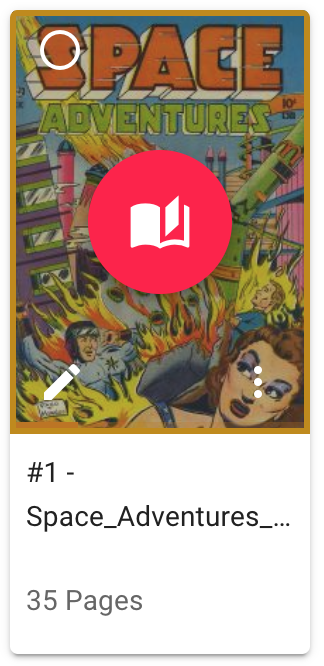
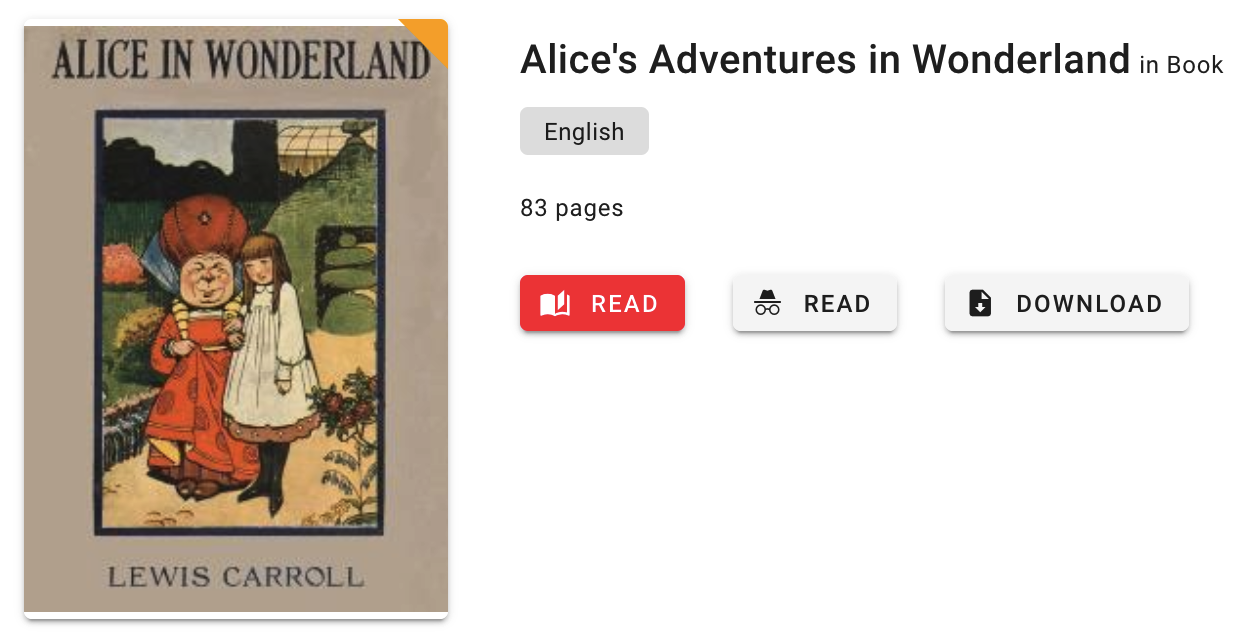
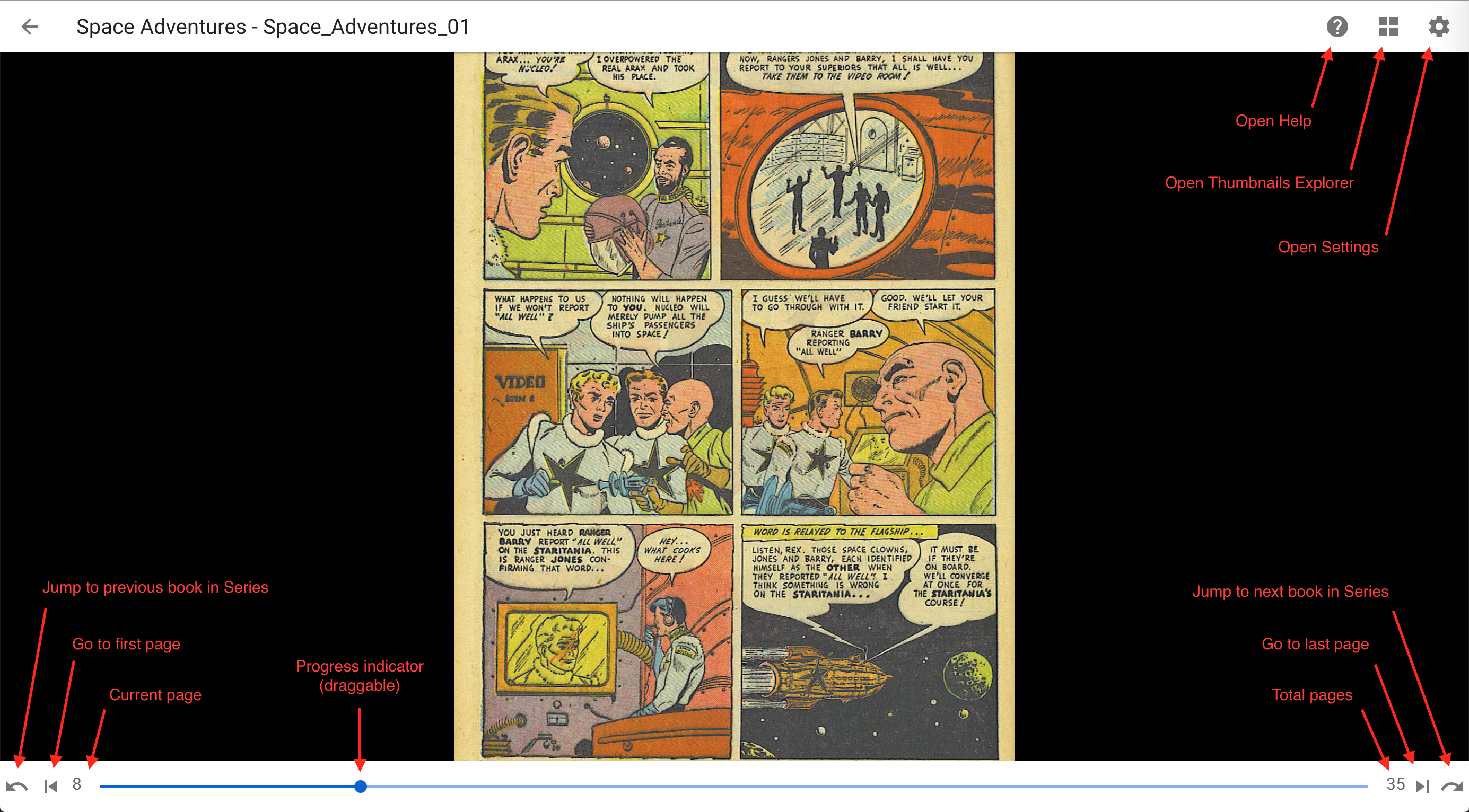
Here is an overview of the Webreader's interface.
Settings
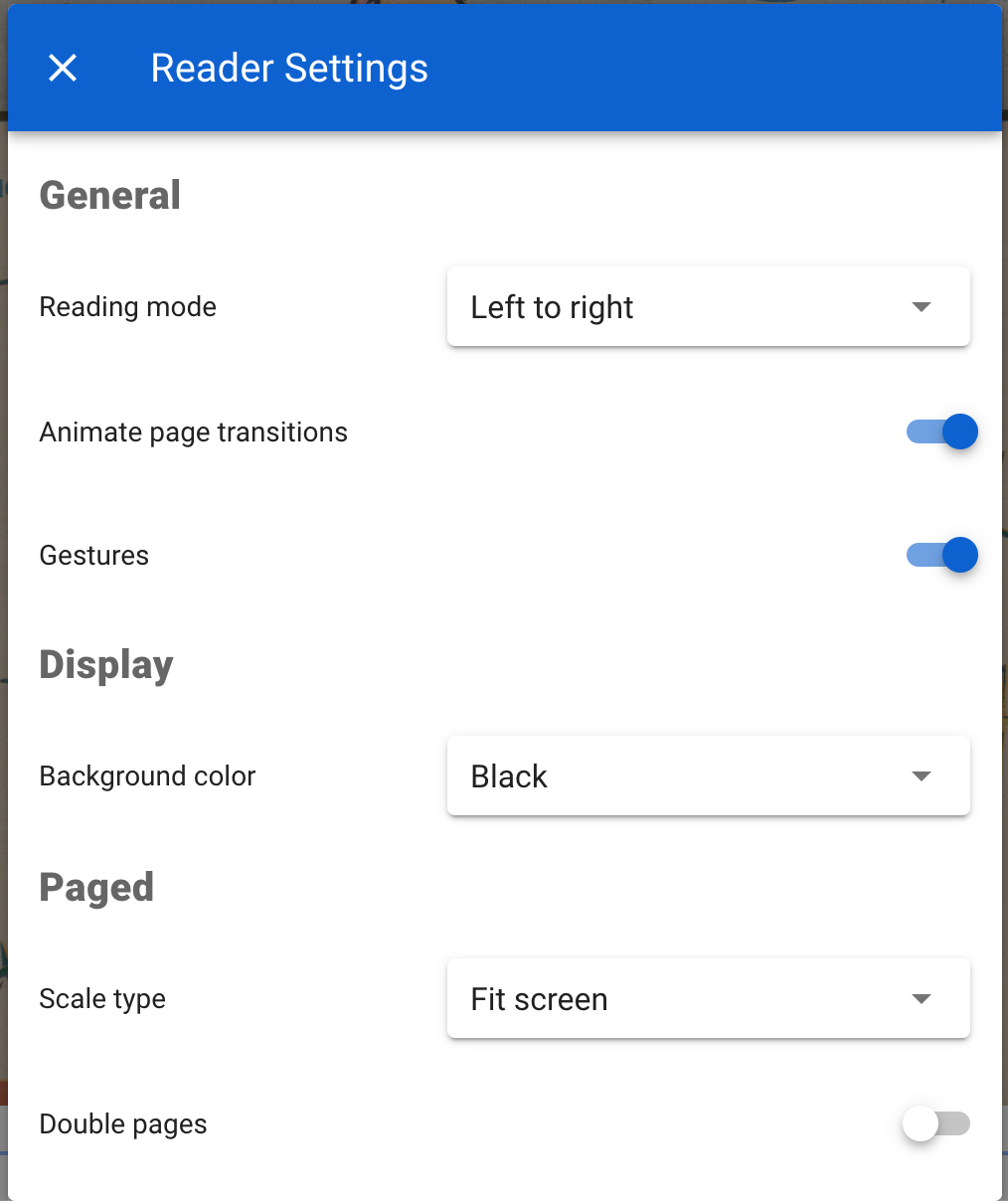
The Webreader can be configured in various ways from the settings dialog.
General
Reading mode
Four reading modes are available:
-
Left to right
-
Right to left
-
Vertical
-
Webtoon: displays all the pages in a continuous vertical strip
The Webreader will automatically use the Reading direction specified in the Book metadata.
Animate page transitions
If enable, a smooth transition will be used to switch between pages.
Gestures
Touch gestures are available in the Page reader only (Left to right, Right to left, Vertical), and can be disabled if necessary.
Display
Background color
You can choose the background color of the reader between white, gray, and black.
Reader specific options: Paged reader
Scale type
Four scale types are available:
- Fit to screen
- Fit to width
- Fit to height
- Original
Double pages
When enabled, the Webreader will display two pages on the same screen, like an open book, with the following exceptions:
- The first and last page will always be shown as a single page
- If a page has a landscape orientation (width > height), it will be show as a single page
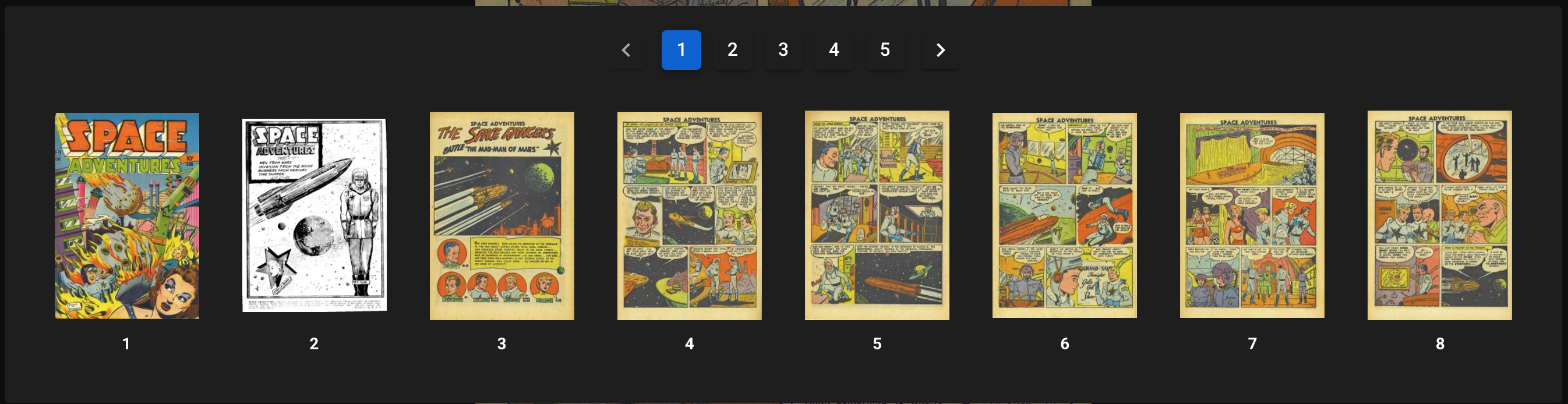
Thumbnails explorer
You can use the Thumbnails explorer to have an overview of all the pages in the book, and to quickly navigate to a particular page.
Help dialog
The help dialog will display the available keyboard shortcuts. The dialog is context-aware, and will only show shortcuts that are relevant to the current reading mode.