Run on ZimaOS
This method is not officially supported. Support is provided by the ZimaOS team — see Need Help below.
This guide covers installing and using Komga on ZimaOS. Komga is natively supported in the ZimaOS App Catalog and can be installed in just a few minutes.
Prerequisites
- A running ZimaOS home server.
- Your PDF or EPUB files stored in a local folder on your ZimaOS home server.
Install from the App Catalog
-
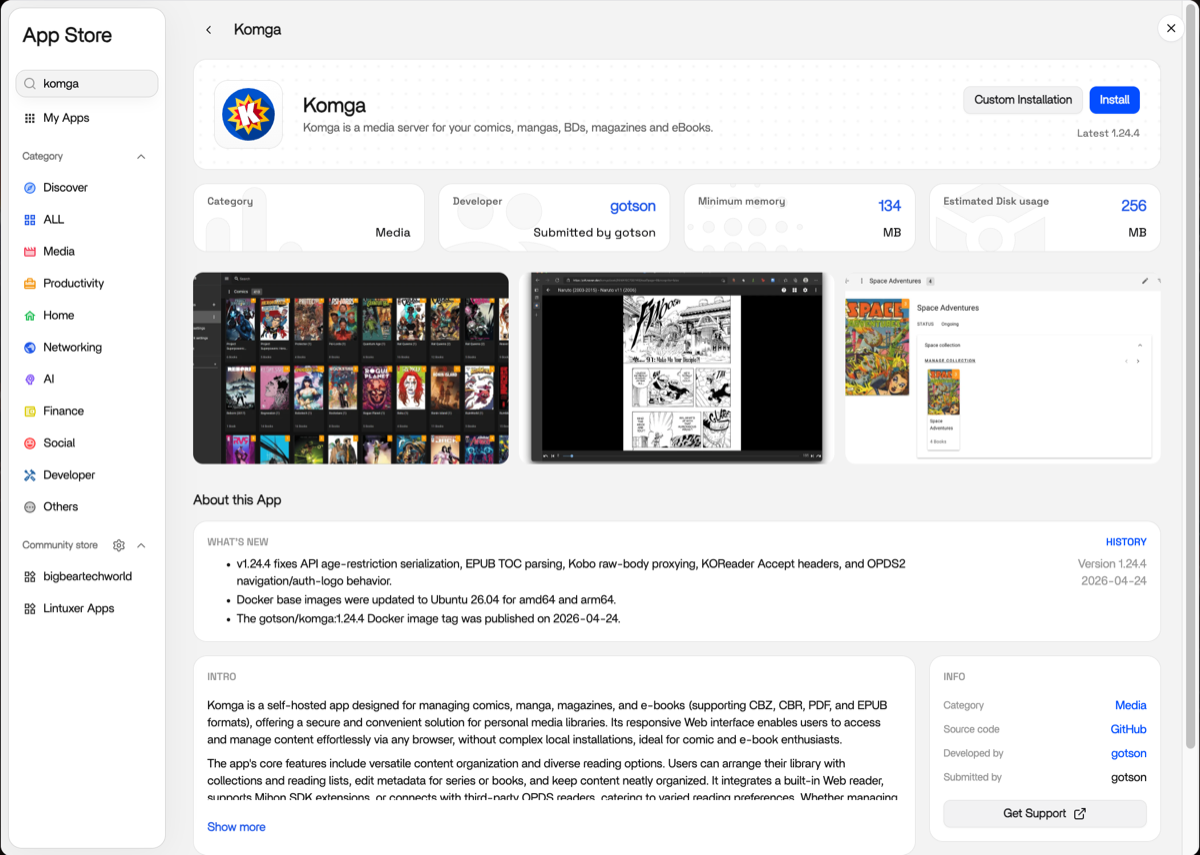
Find Komga in the ZimaOS App Catalog: open App Store and search for "Komga".
-
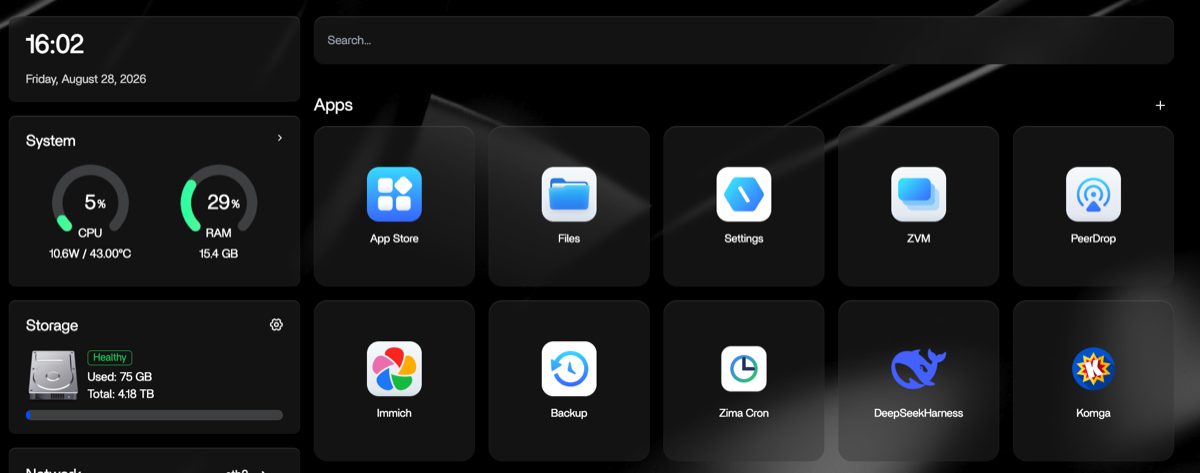
Install it — Komga is ready to use right away.
Upload Files via ZimaOS Files
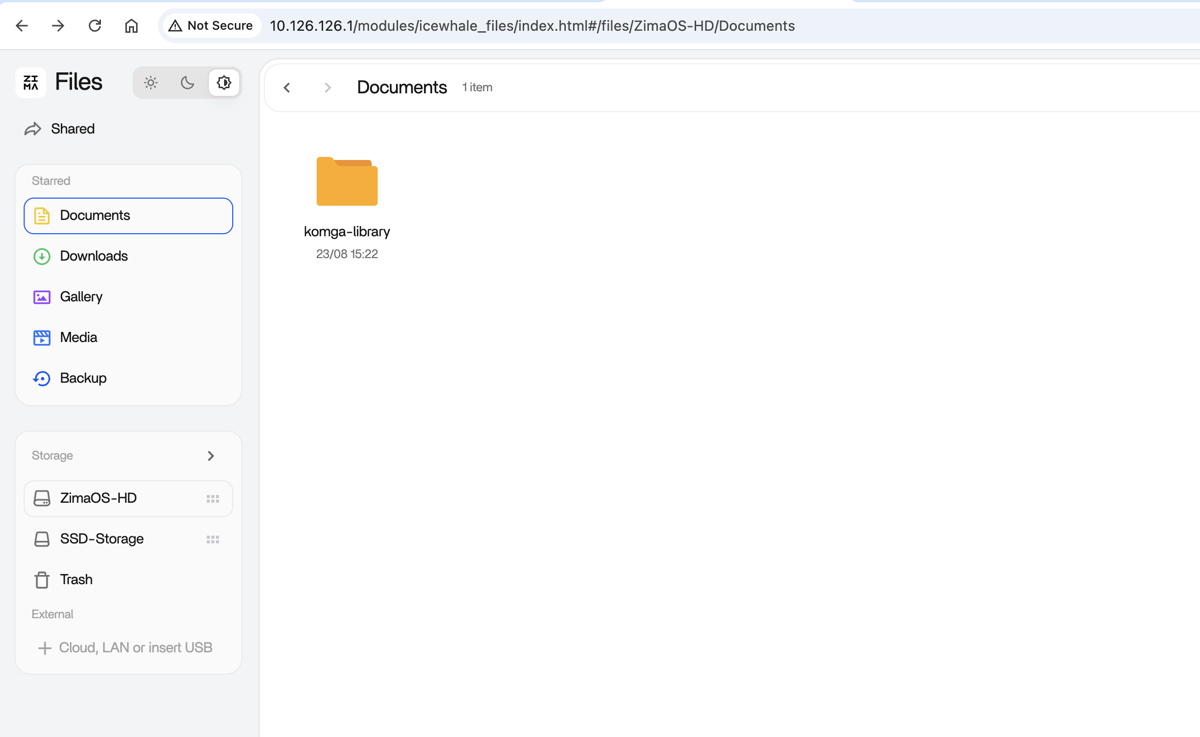
Use ZimaOS Files to upload or copy your PDF or EPUB files directly:
- Open ZimaOS Files.
- Create a new folder.
- Drag and drop your PDF or EPUB files to upload them into the directory.
Authorize Komga to Load Data
The following steps are not required — you can get started right away with the default configuration.
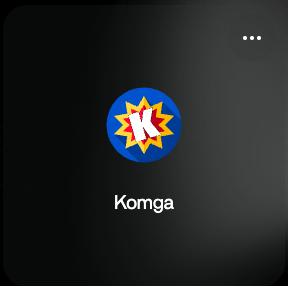
If you want to customize the container settings, open the options in the upper-right corner of the Komga app:
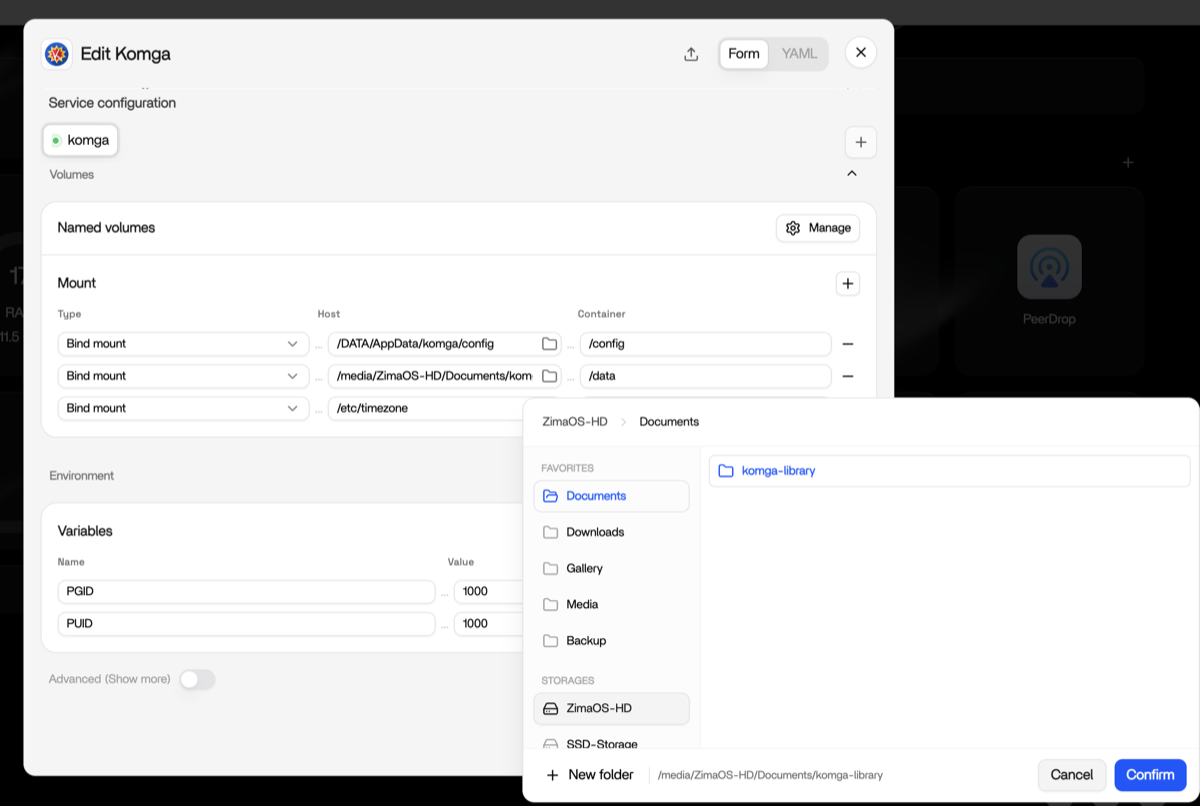
ZimaOS supports multiple configuration methods, including form-based editing and YAML secondary editing.
In the ZimaOS configuration form for Komga, navigate to the Volumes (or path mapping) section and add a new volume rule:
- Set the Container Path to
/data(the default media directory inside Komga). - Set the Host Path to the local folder on your ZimaOS device where your comics are stored.
Need Help?
If you run into any issues while installing or using Komga on ZimaOS, join the ZimaSpace Discord community. Our team and community members will be happy to help.